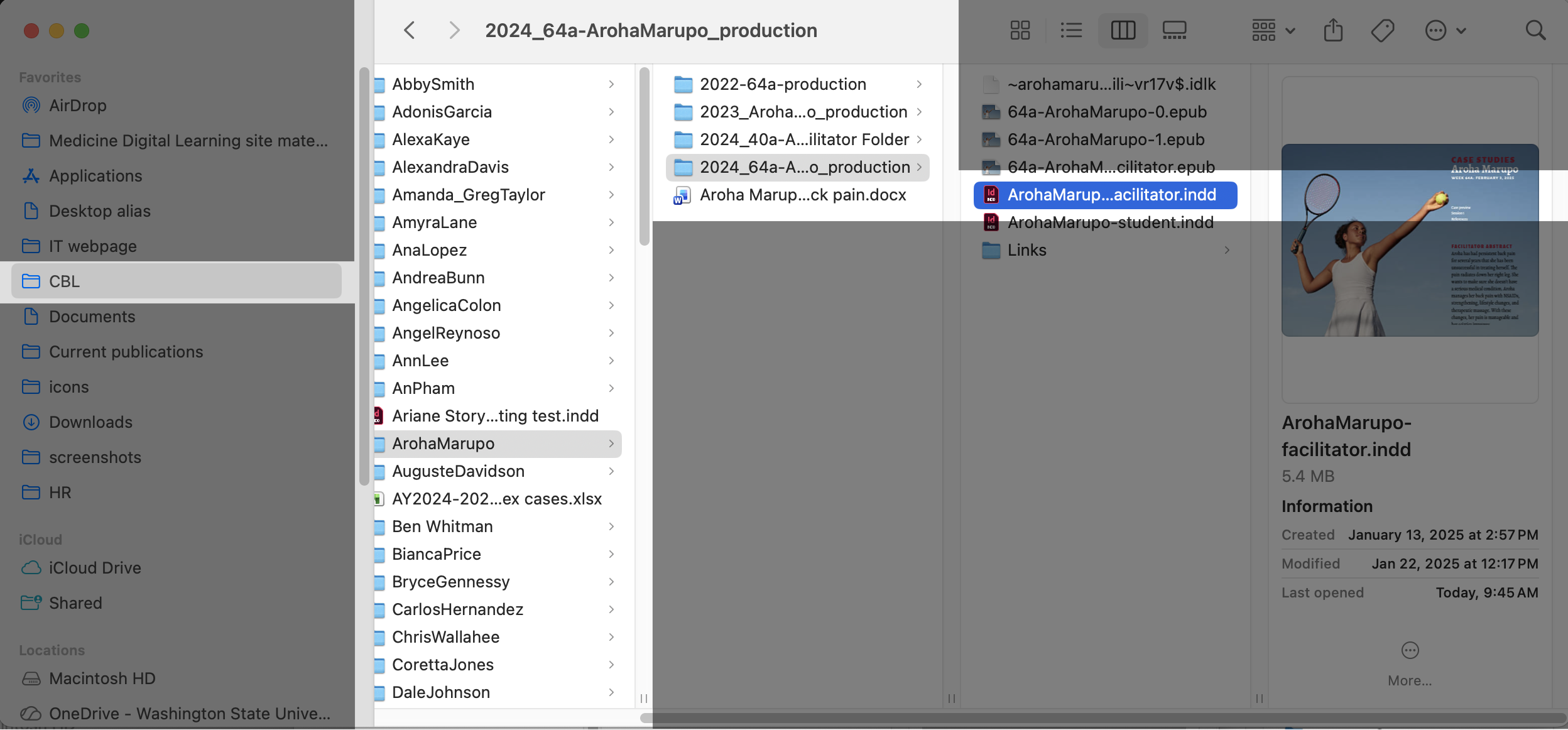
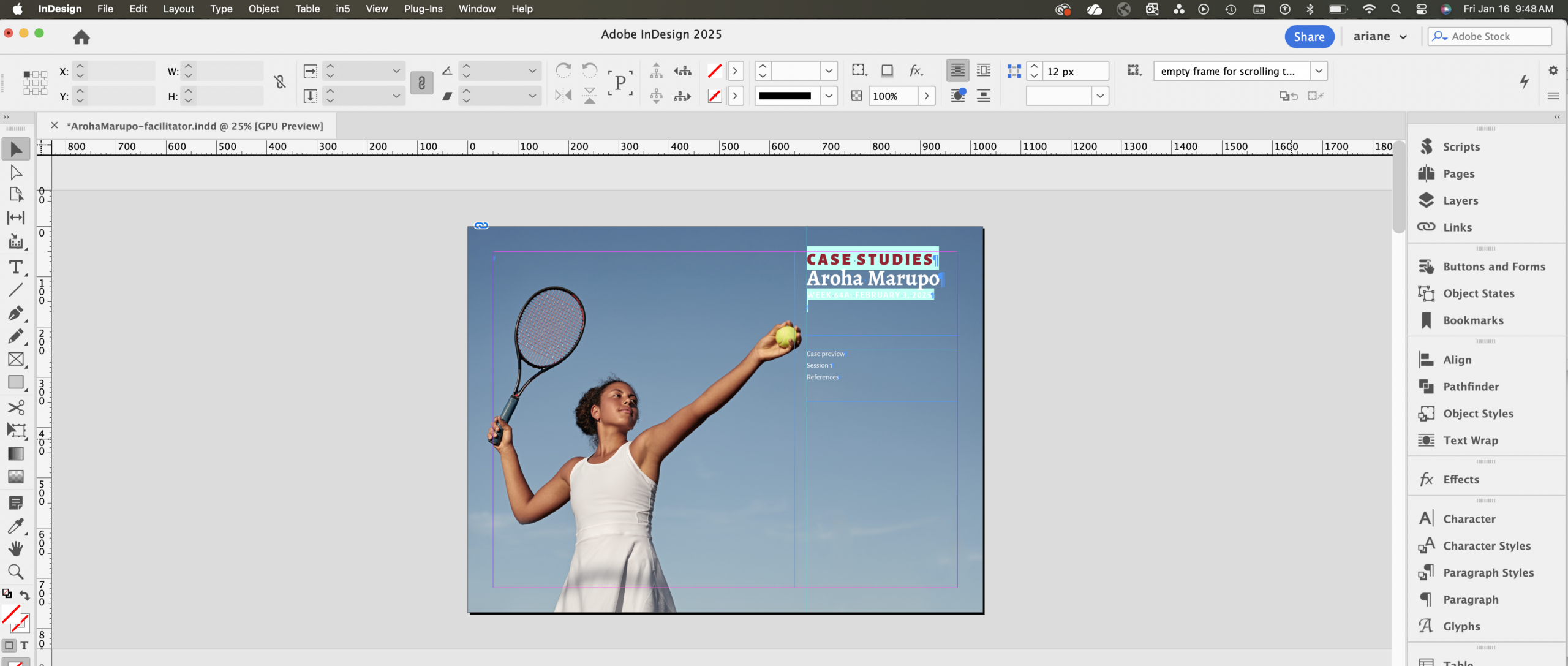
Open the InDesign file in your Finder.
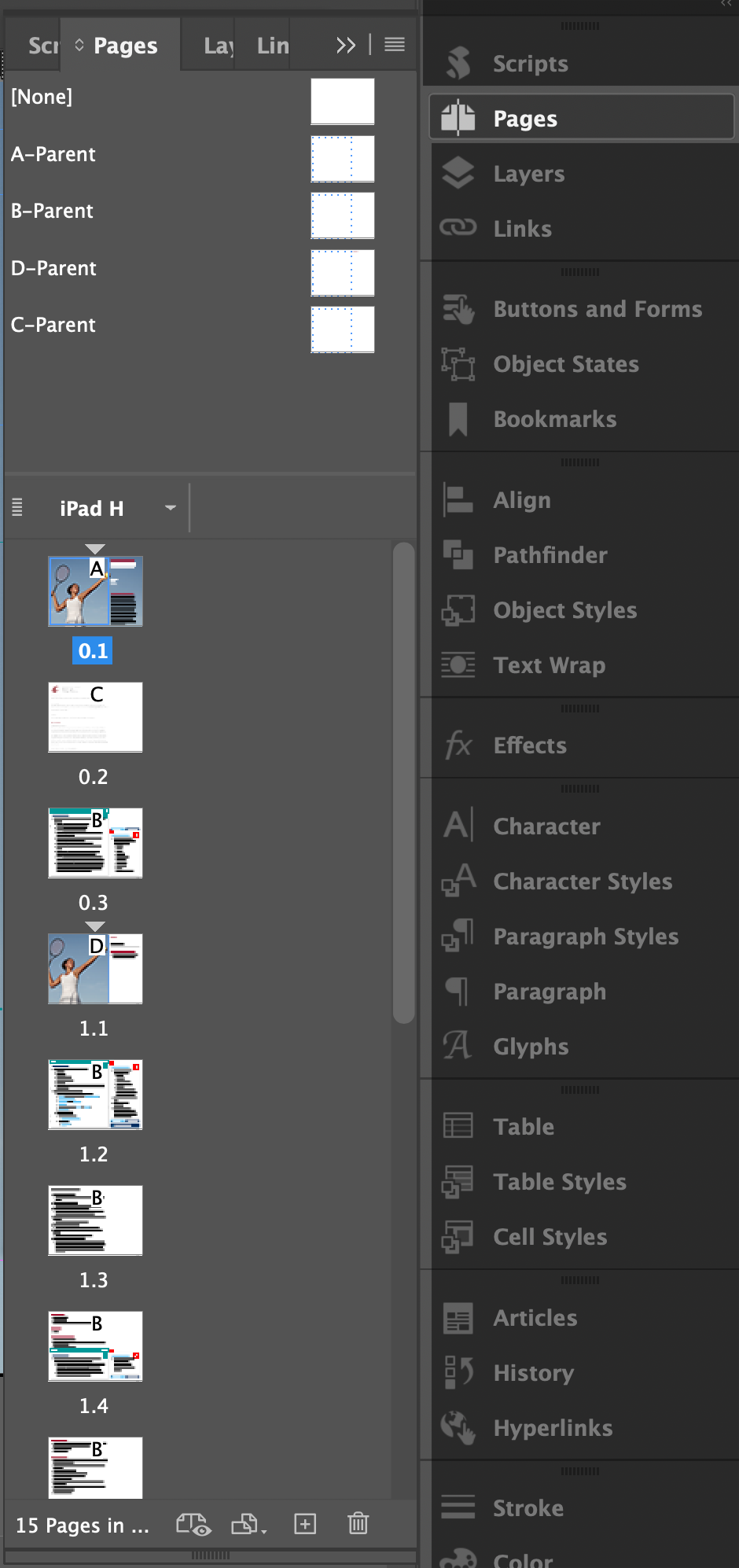
Find the page in the Pages palette on the right side of your screen.
Keyboard command: Cmd + J
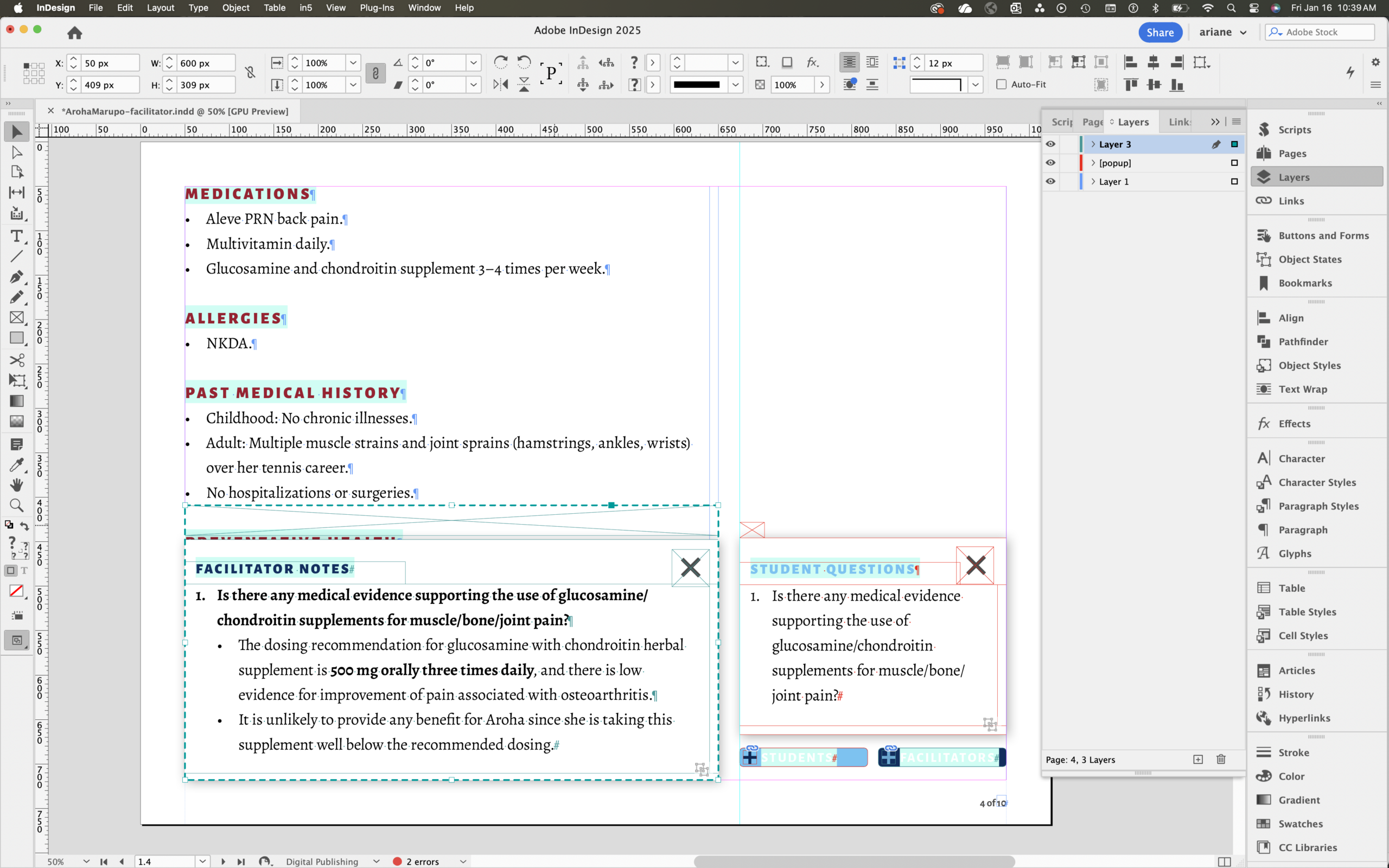
Using the Selection tool ( black arrow), click the text box that you want to edit.
Using the Text tool, select the text that you want to edit (if applicable).
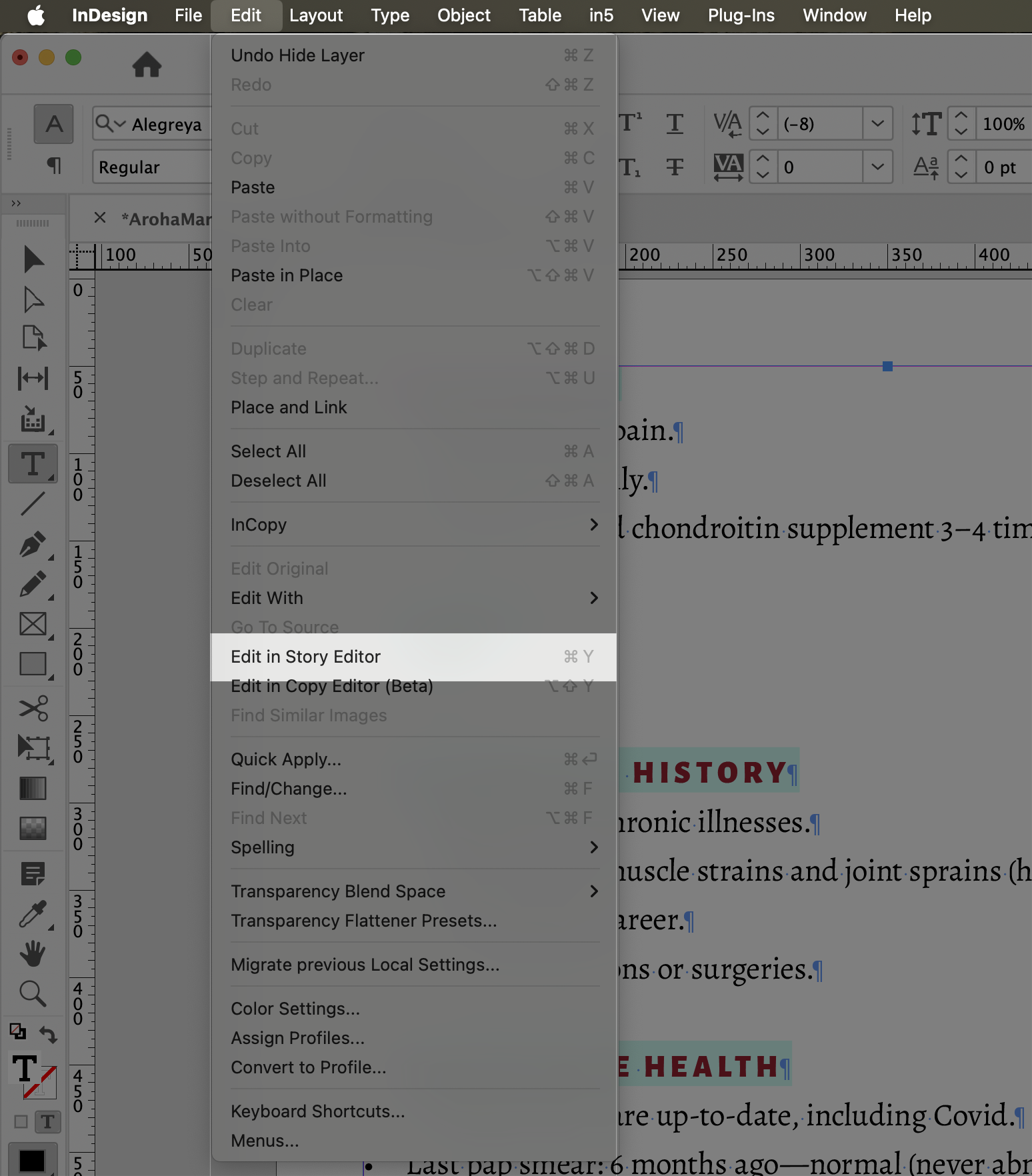
Go to Edit/Edit in Story Editor, and the window will open.
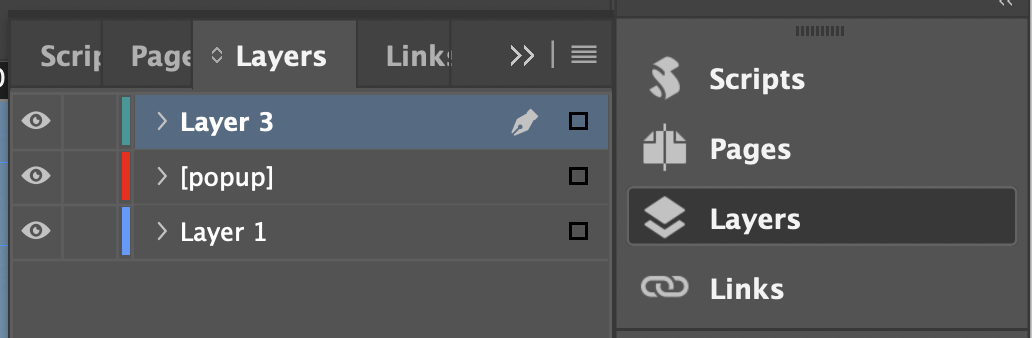
Show or hide layers in the Layers palette by clicking the Eye icon.
Hint: The layer that an object is on is indicated by its color.
Put notes to Heather on the pasteboard.
Zoom out if needed (cmd + – [minus]) to see the pasteboard.
Click the Text tool (on the left side of the screen), then click and drag a new text box.
If it should be anchored to a certain page, put a little bit of the text box in the margin of the page.
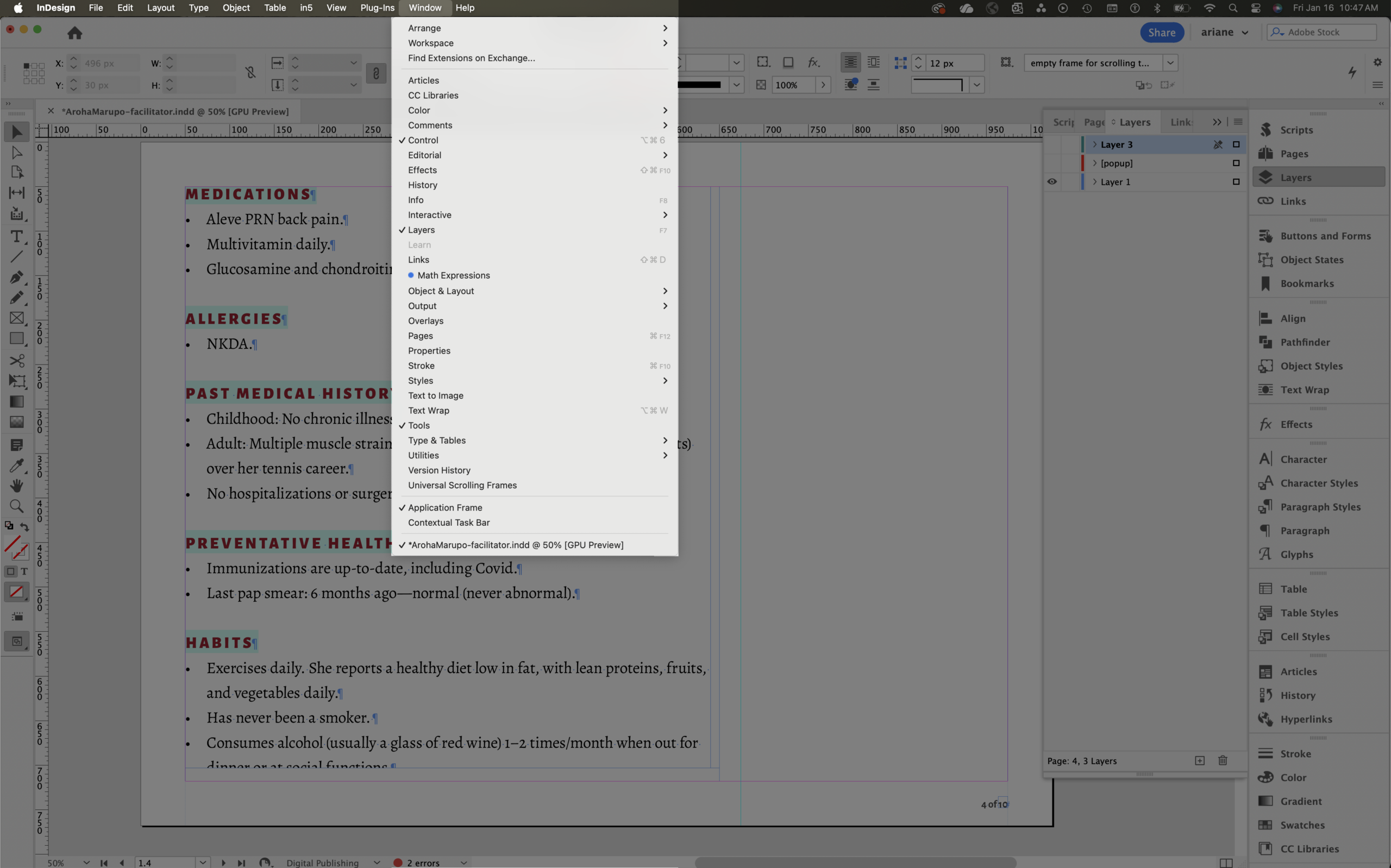
If your Workspace doesn’t open them automatically: Go to Window, then choose whichever palette you need.
Bold: Cmd + Shift + B
Undo the last action: Cmd + Z
Text tool: Press T on the keyboard
Switch pages: Cmd + J, then enter the page number
Go to the Selection tool ( black arrow): Esc
If you accidentally lose all of your guidelines: Make sure you’re on the Selection tool and not on any objects, then press W on the keyboard.